Digital Signatures and Portals for Act! Premium (Desktop) | MyDocSafe
Accept digital signatures, go paperless and manage your documents securely with MyDocSafe. Digital signatures and document management for Act! Premium (Desktop) Try for FREE today.

MyDocSafe for
Act! Premium Desktop
Access the power of MyDocSafe platform directly from Act! Premium CRM Software
Act! is an award winning Customer Relationship software. We have built a plugin that makes it easy to access MyDocSafe directly from Windows desktop version of Act! Premium.
To learn more about Act! Premium Desktop go here.
Installation instructions
For Windows:
1. Determine your Act! Premium Desktop version:
- If you have a v23 or lower, user 32-bit
- If you have v24 or higher, use 64-bit
2. Download appropriate Installer.
3. Make sure you close Act! Premium Desktop
4. Run the installer.
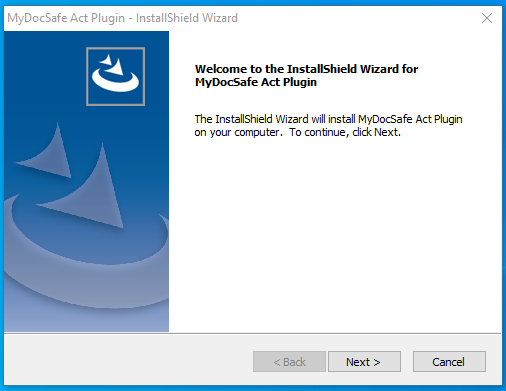
Click ‘Next’
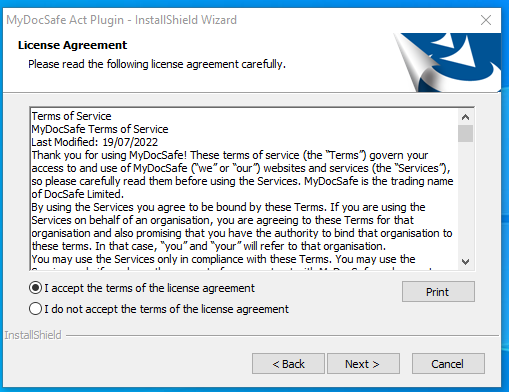
Accept the License Agreement and click “next”
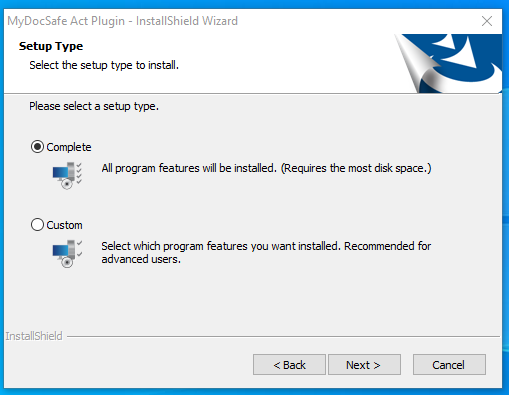
Select “Complete” type and click “next”
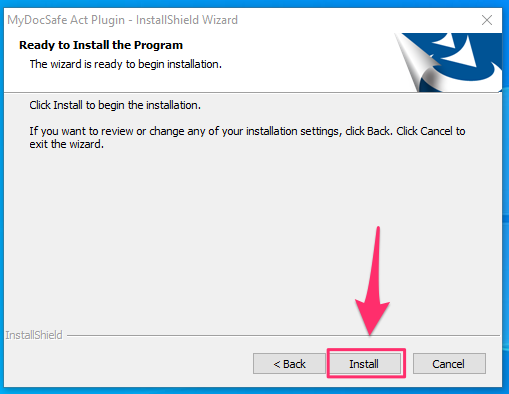
Click “install”
Click “Finish”
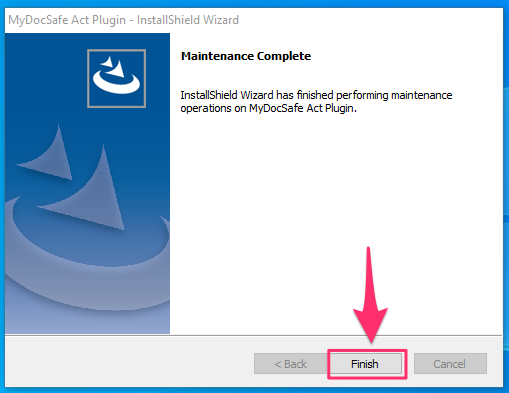
5. Restart your Act! Premium Desktop program.
You may now be required to authenticate the plugin (get the login details by starting a free trial of MyDocSafe here). After authentication you should see a tab called “MyDocSafe” in the detailed view of each contact
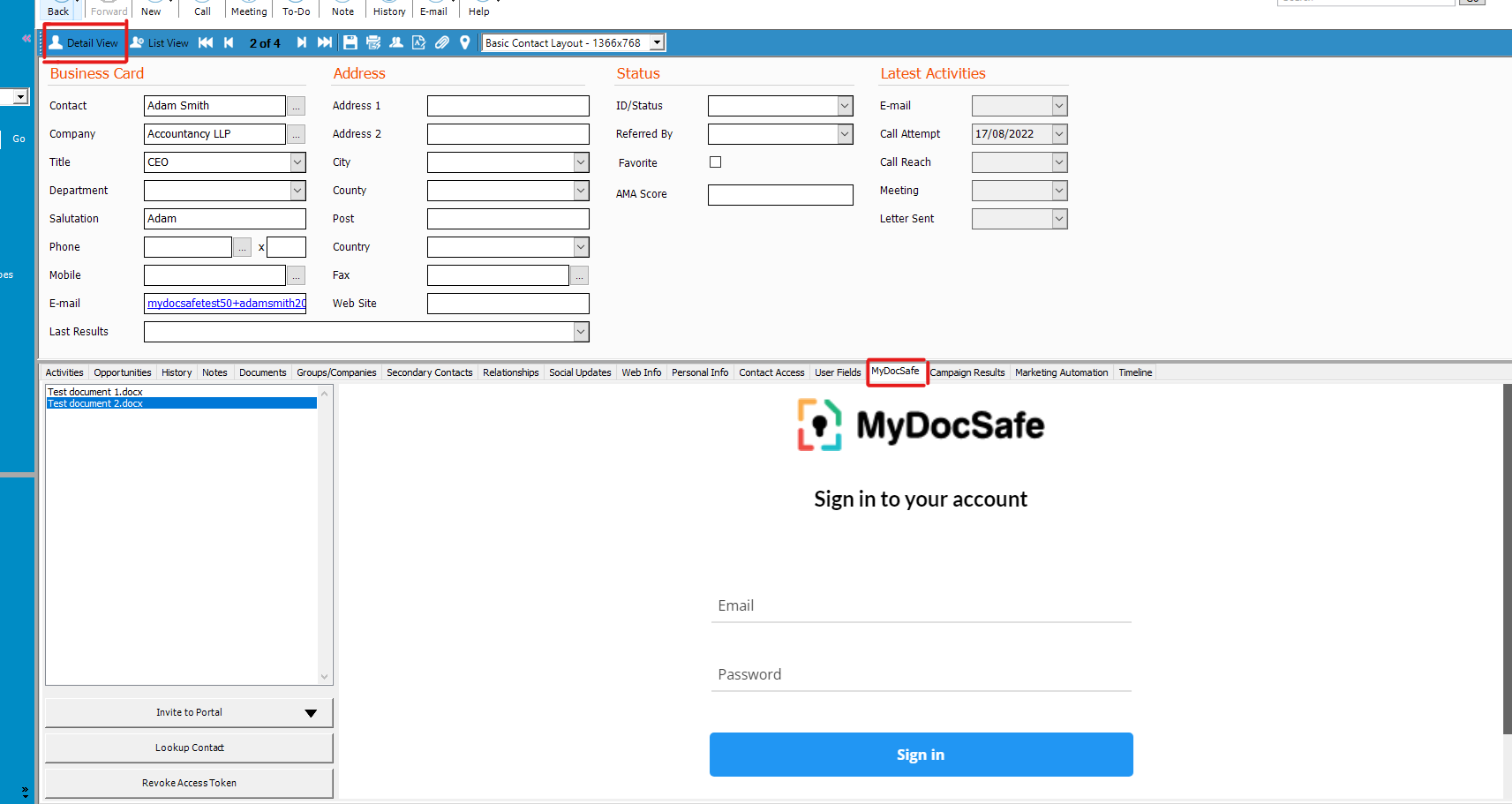
If you cannot see MyDocSafe tab, it is most likely because your system blocks a component we use to automate the plugin authentication process. In that case you should try a version of the plugin that does not use that component.
- Uninstall the plugin you installed above.
- Download this version of the plugin instead and install it (one version works for all Desktop versions of Act!)
- Re-run Act! and you should now see MyDocSafe tab. The system should now ask you for an authentication token.
- Login to MyDocSafe, go to Home/Settings/Integrations/Open configuration.
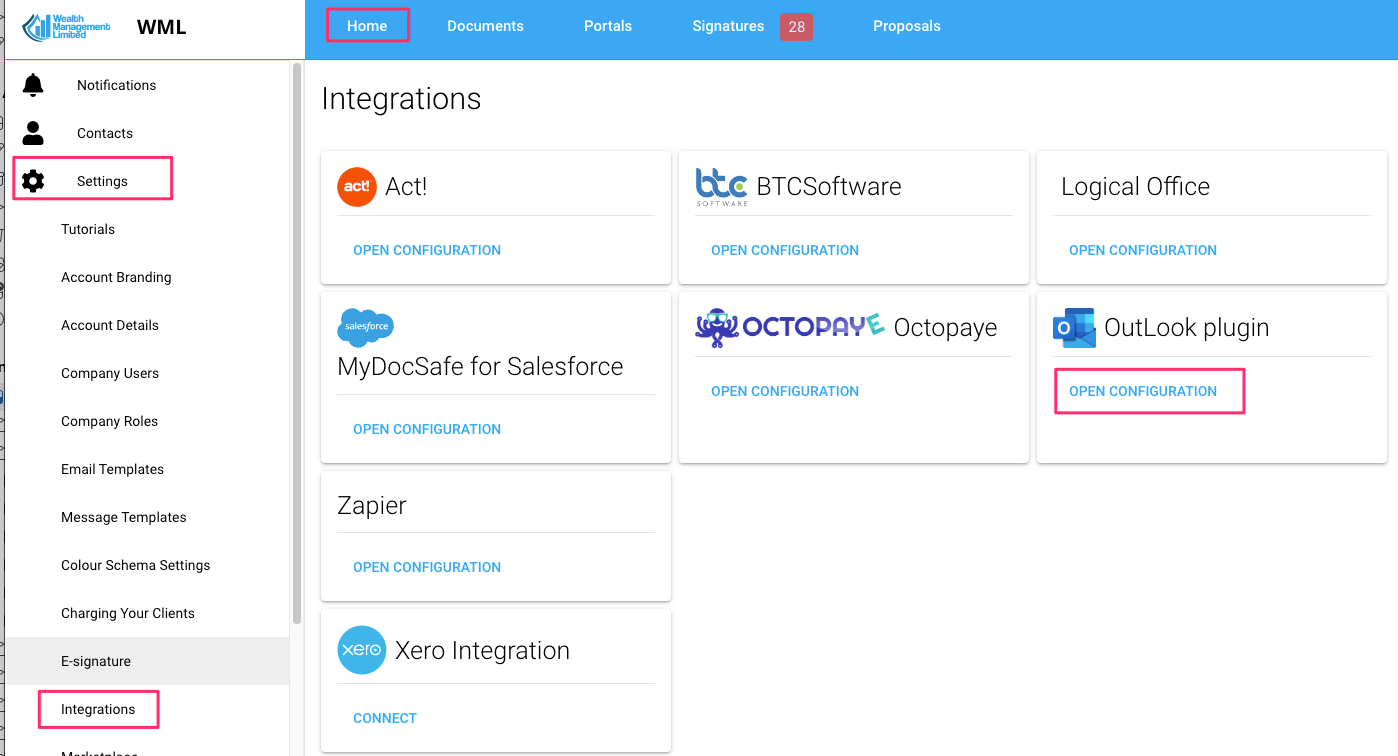
- Click ‘get my token’, copy it and paste it in the dialog box in Act.
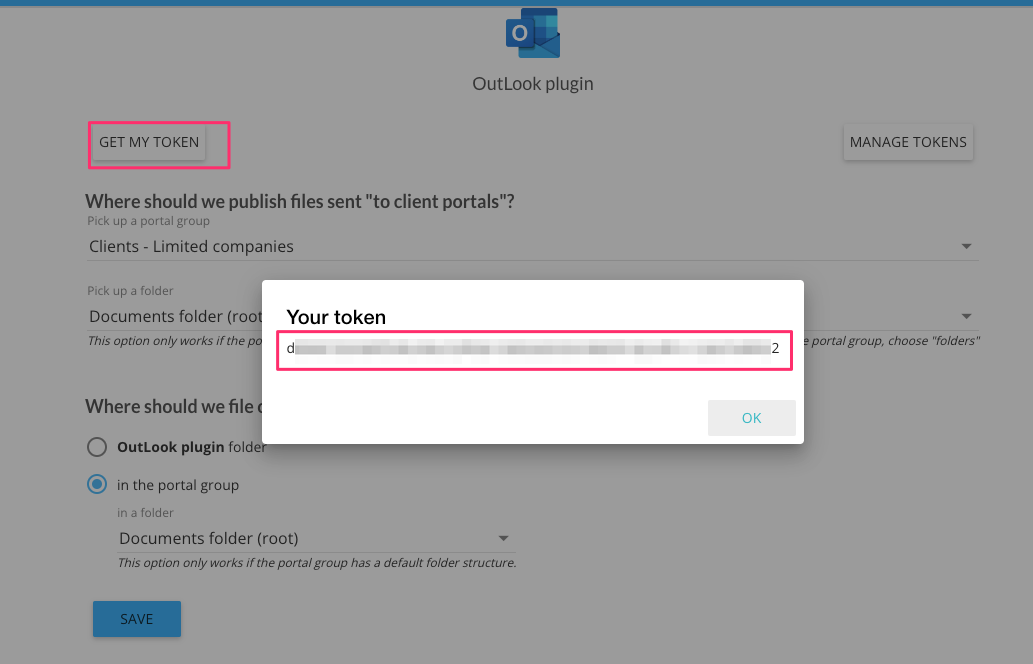
You should now be able to start using the plugin.
To learn about how to use the plugin, go to our Knowledge Database (login to MyDocSafe, click on the icon in the top right corner, go to “Help”).
How to update the plugin
Our plugin does not update automatically just yet. To update the plugin:
- Close Act! Premium Desktop
- Download appropriate Installer and run it
- Select “Repair” option and click “next”
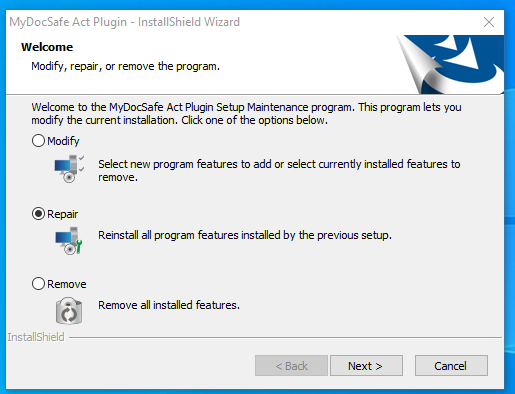
- Click “Finish”
How to re-install the plugin
-
- Close Act! Premium Desktop
- Download appropriate Installer and run in.
- Remove the current version of the plugin
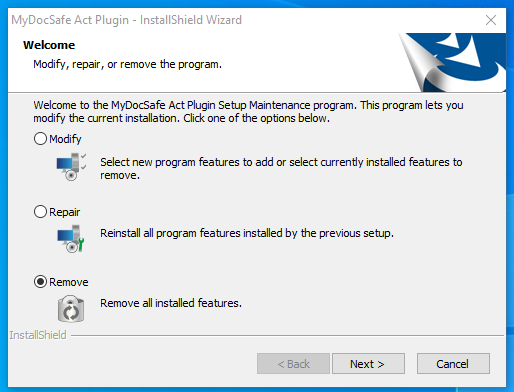 Confirm with “yes”
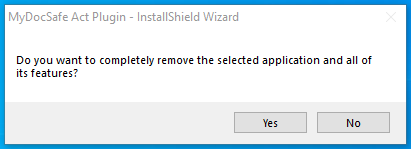 At this stage you may need to re-start your computer to complete plugin removal.
 - After the old plugin has been removed, run the installer again and click “next”
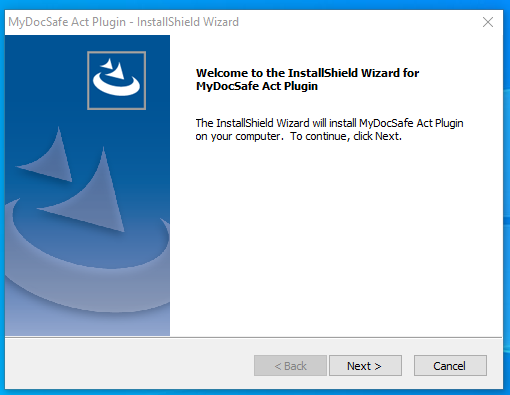
- Accept MyDocSafe terms of service:
- Select “Complete” setup type:
- Finally, click “install”:
For Act! Premium Cloud:
Coming soon!
Customize MyDocSafe for your business todayLearn more
Start your free trial today
MyDocSafe is the only document security and e-sign software you need.
Start A free trial