MyDocSafe plugin for Microsoft Word
MyDocSafe works with Microsoft Word through a plugin that enables electronis signing and easy sharing through secure client portals.
Office integrations:
Microsoft Word document management
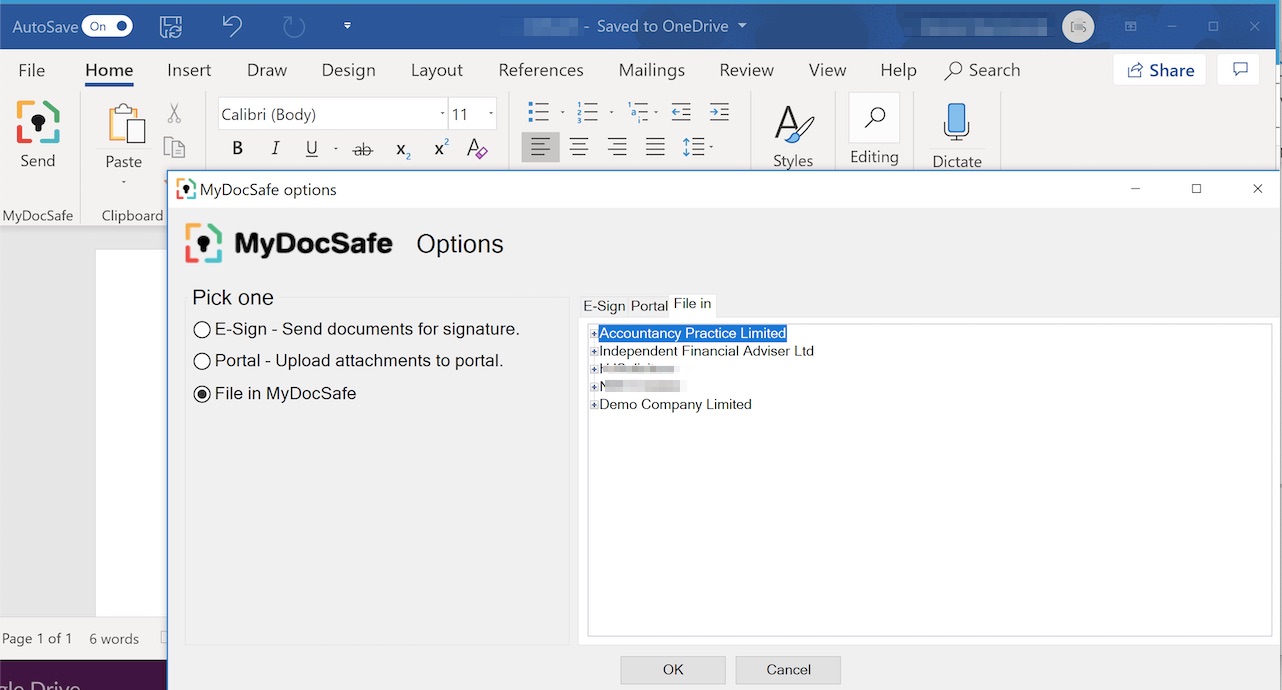
Installing MyDocSafe document management for Word add-in adds a MyDocSafe button to the main panel of Microsoft Word.
The button will appear in the top left corner and can be used to:
-
Send a document for client approval directly from Word
-
Publish a document in a user portal
-
File the document anywhere in MyDocSafe
Select your system:
New Installation
IMPORTANT NOTE:
Please select the bit version of your Microsoft Word (32-bit or 64-bit). MyDocSafe for Word works on both 32-bit and 64-bit Windows so Windows bit version is not relevant.
Please follow the steps below to determine the Word bit version:>
-
Word 2013/2016: Account > About Word (listed at the end of the first line on the pop-up)
-
Word 2010: File > Help (listed on the first line below, “About Word”)
Download 32 bit
Download 64 bit
Screenshots
How to install?
- Confirm if your Microsoft Word is 32-bit or 64-bit if you are using Word 2010, 2013, or 2016.
- Open Word
- Word 2013/2016: File > Account > About Word (listed at the end of the first line on the pop-up)
- Word 2010: File > Help (listed on the first line below, “About Word”)
- Close Microsoft Word
- Click the appropriate download button above and follow the installation wizard.
New Installation

-
Click on the ‘Get Add-ins” button. If you can’t see that button that is probably because your Outlook has only one email account associated with it. Add any other account for the ‘Get Add-ins’ button to appear
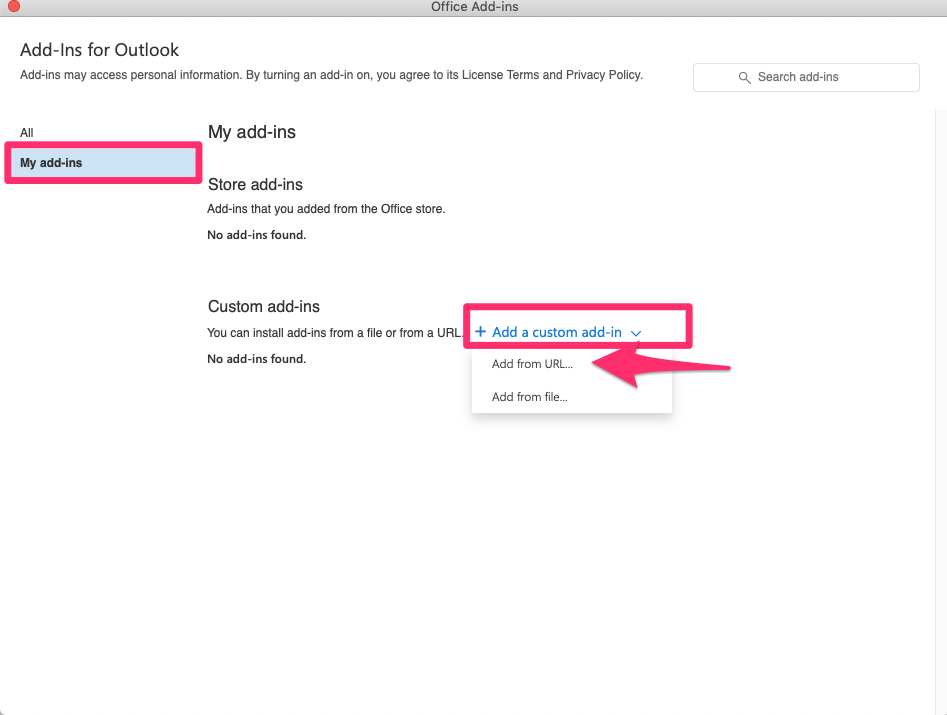
2. Go to “My add-ins”, then Custom add-ins and Add an addin from URL
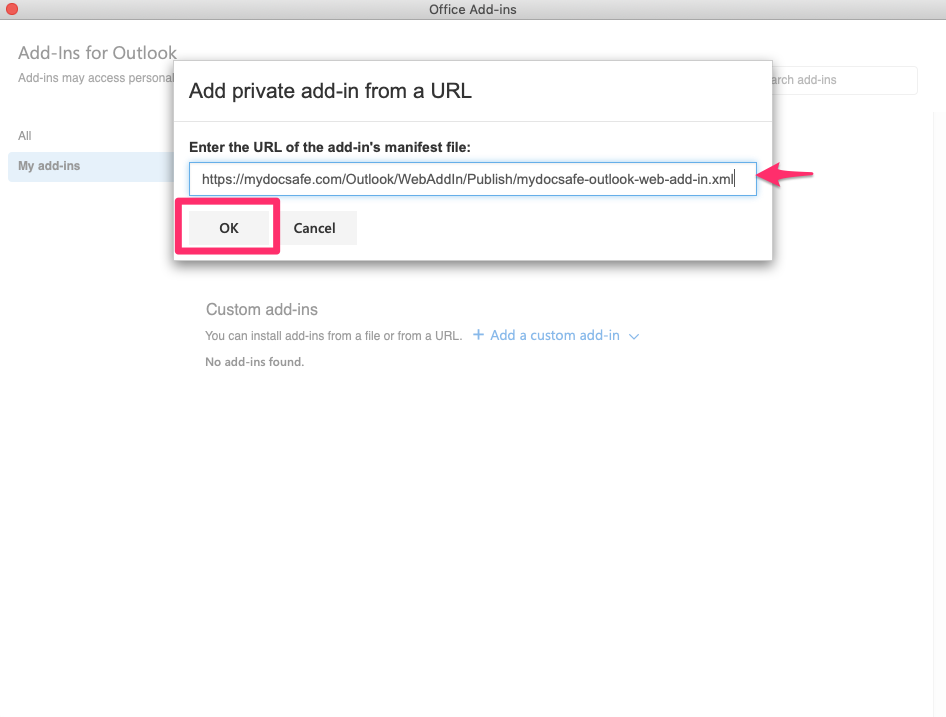
3. Enter the following URL in the dialogue box and click ‘ok’: https://mydocsafe.com/Outlook/WebAddIn/Publish/mydocsafe-outlook-web-add-in.xml
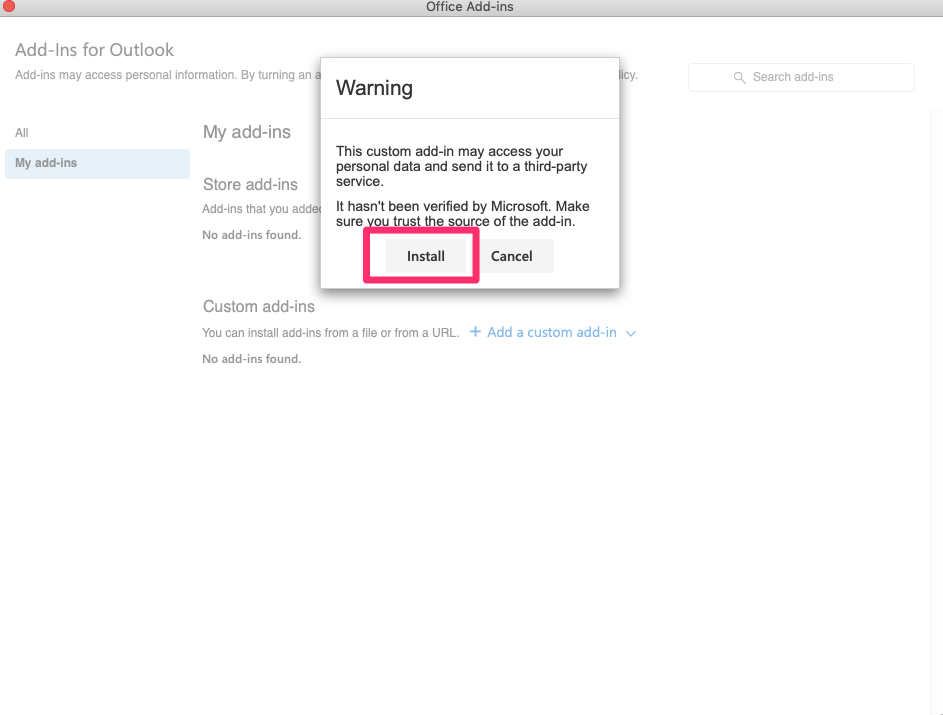
4. Install the plugin
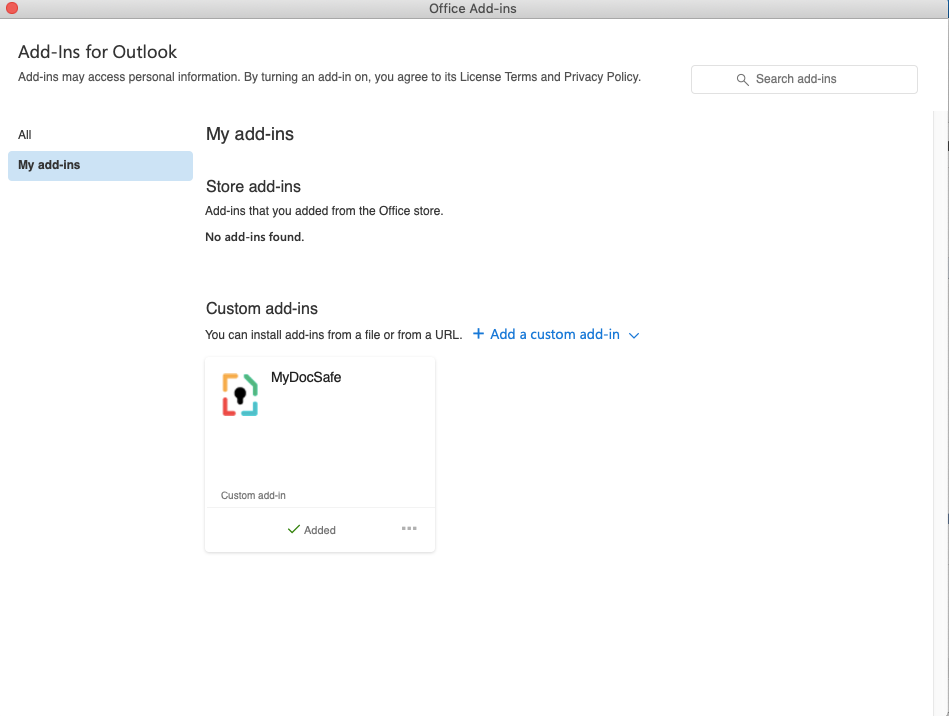
You can now authenticate the connection with your MyDocSafe account.
How to install?
- Confirm if your Microsoft Word is 32-bit or 64-bit if you are using Word 2010, 2013, or 2016.
- Open Word
- Word 2013/2016: File > Account > About Word (listed at the end of the first line on the pop-up)
- Word 2010: File > Help (listed on the first line below, “About Word”)
- Close Microsoft Word
- Click the appropriate download button above and follow the installation wizard.