Send and receive secure messages in portals
Send and receive secure messages in portals
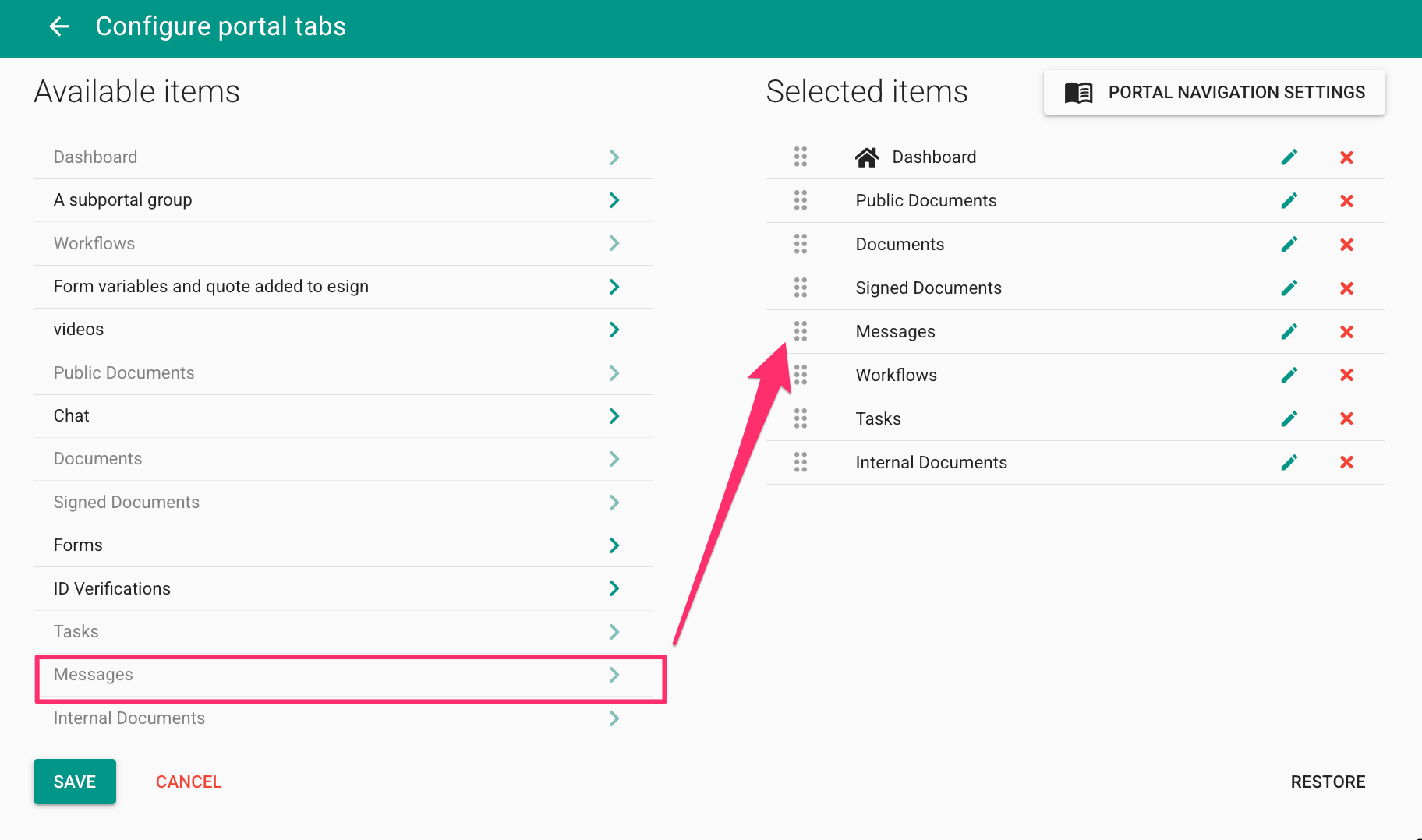
To enable secure messaging in client portals make sure the "messages" app is turned on. Go to "Configure portal tabs" page via Portal Group settings option:
By default, any internal user with access to a portal with "messages" tab enabled will be able to send:
email notifications (unencrypted messages)
secure messages (login required to read them)
requests to upload documents (unencrypted messages with 'secure upload link')
requests to fill out forms (unencrypted messages with a link to the form - login required)
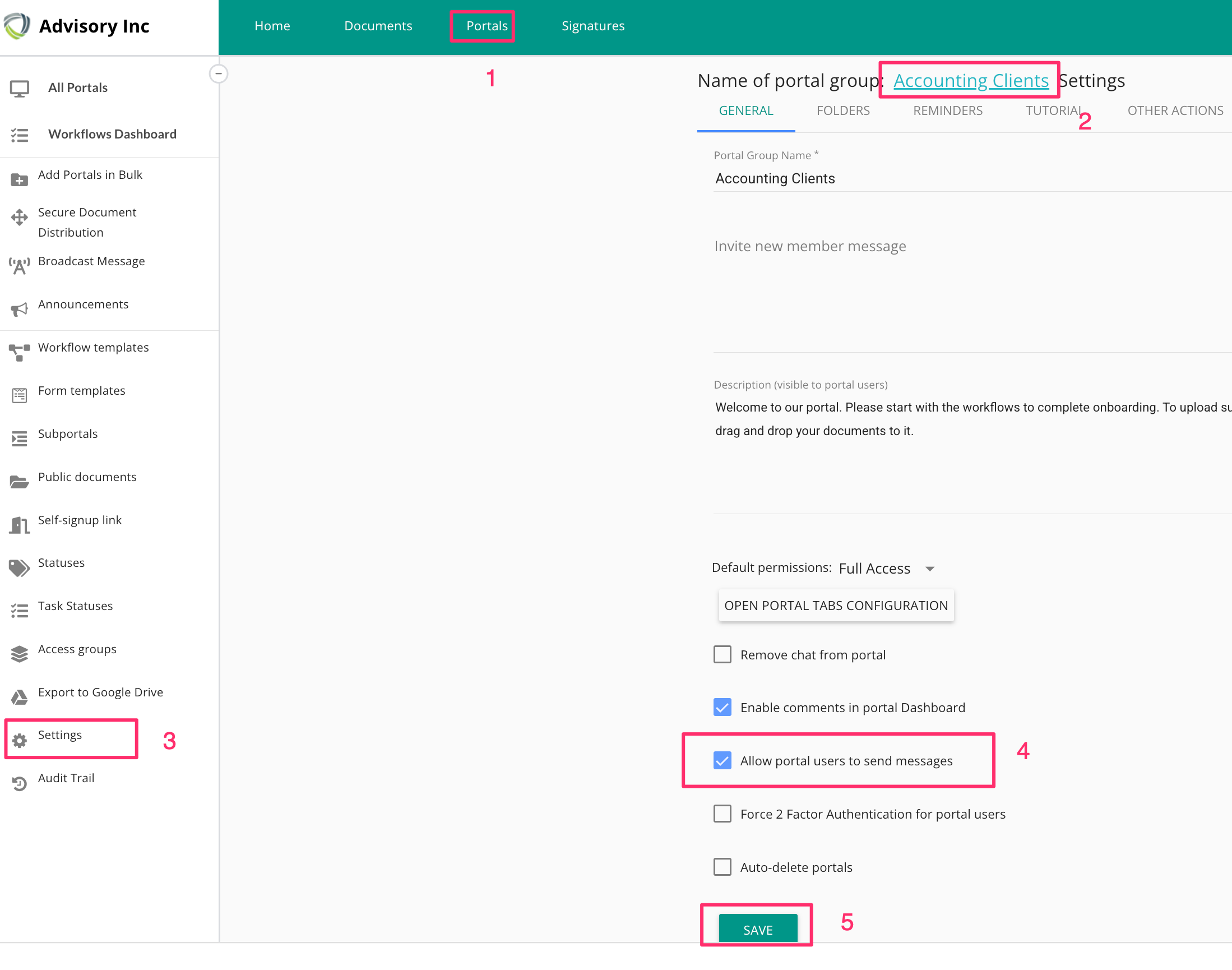
To enable client, a.k.a. external users to send messages, enable that option in settings:
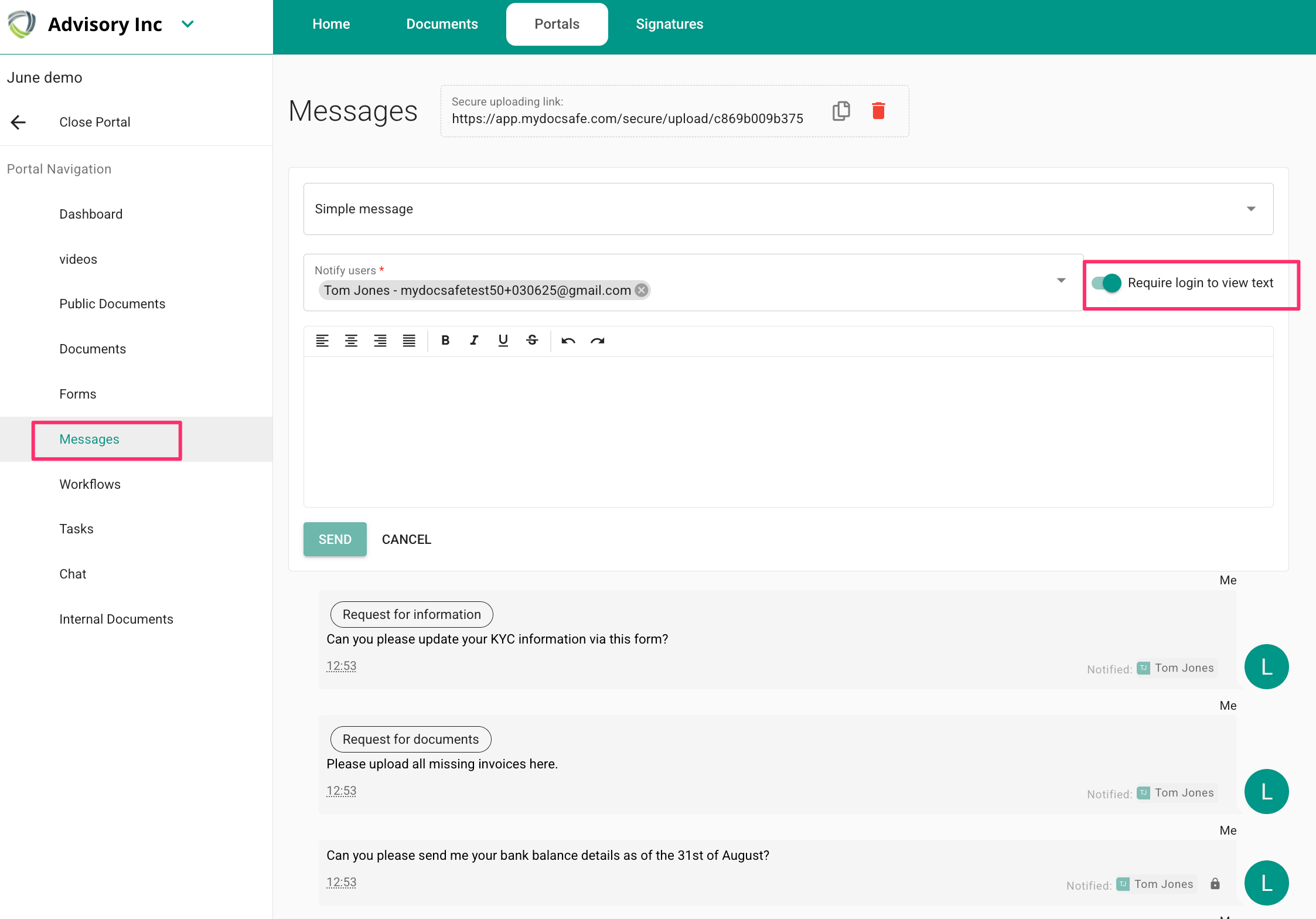
To send a message, go to the client portal and then select Messages:
make sure to turn on "require login to view the message" for encrypted/secure messaging, otherwise keep the option off. You will notice a padlock on the sent message which designates encrypted /secure message.
client's view is simpler: by default they can only send and respond to secure messages
___________________________________________________________
Final note: if you have been using our legacy chat system, now is the time to discontinue using it. We'll be depricating it soon.